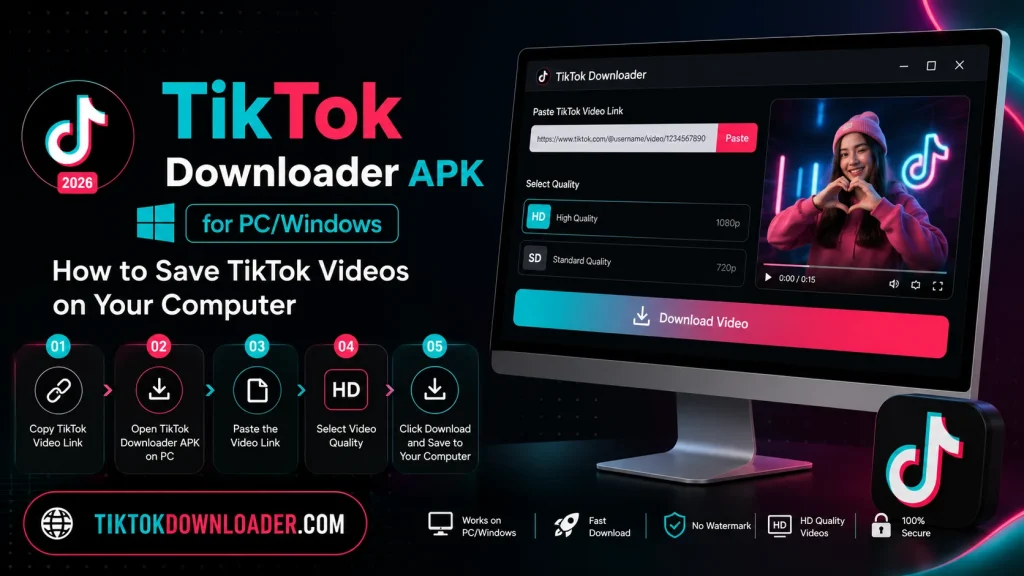
TikTok Downloader APK for PC/Windows: How to Save TikTok Videos on Your Computer
While TikTok is primarily a mobile app, many users want to download and save TikTok videos directly on their PC or laptop. Since APK files are designed for Android devices and can’t be installed directly on Windows, using a TikTok Downloader on PC requires a slightly different approach. In this guide, we’ll explain how to download TikTok videos on Windows, including how to use an Android emulator to run the APK version if you prefer that experience.
Can You Really Install an APK on Windows?
APK (Android Package Kit) files are built specifically for the Android operating system, which means they can’t be installed on Windows the same way a traditional .exe program can. However, there are two practical ways to enjoy a TikTok downloader on your PC:
- Use a web-based TikTok downloader directly through your Windows browser (no installation needed)
- Use an Android emulator to run the APK version of the downloader on your PC
Both methods let you save TikTok videos to your computer, so the right choice depends on your preference for convenience versus a mobile-app-like experience.
Method 1: Using a Web-Based Downloader on Windows
This is the simplest and most direct method, since it doesn’t require installing anything extra.
Step 1: Copy the TikTok Video Link
Open TikTok on your phone or in a browser, find the video you want, and copy its link using the Share option.
Step 2: Open a Browser on Your PC
Launch your preferred browser (Chrome, Edge, Firefox, etc.) on your Windows computer.
Step 3: Paste the Link Into the Downloader Tool
Navigate to a TikTok downloader website, paste the copied link into the input box, and select your preferred download format (video with or without watermark, or audio only).
Step 4: Download and Save
Click the download button, and the video file will be saved directly to your Windows Downloads folder, ready to watch anytime.
Method 2: Using an Android Emulator to Run the APK on PC
If you specifically want to use the APK version of a TikTok downloader (for example, to access extra features not available on web tools), you can run it through an Android emulator.
Step 1: Download and Install an Android Emulator
Popular Android emulators for Windows create a virtual Android environment on your PC. Once installed, open the emulator and complete the initial setup process.
Step 2: Enable Installation from Unknown Sources
Within the emulator’s settings, enable the option to install apps from unknown sources, similar to how you would on a physical Android device.
Step 3: Transfer or Download the APK File
You can either download the APK file directly within the emulator’s built-in browser or drag and drop the APK file from your PC into the emulator window.
Step 4: Install the APK
Locate the APK file within the emulator’s file manager, tap it, and follow the on-screen prompts to complete installation.
Step 5: Open the App and Download Videos
Launch the downloader app inside the emulator, paste your TikTok video link, choose your download settings, and save the video. The file will typically be stored within the emulator’s internal storage, which you can then transfer to your actual Windows file system.
Step 6: Access Downloaded Videos on Windows
Most emulators include a shared folder feature that allows you to move files between the emulator and your PC. Check your emulator’s settings for a “shared folder” or “file transfer” option to move downloaded videos onto your Windows desktop.
Which Method Should You Choose?
| Feature | Web-Based Downloader | APK via Emulator |
|---|---|---|
| Installation required | No | Yes |
| Setup time | Fast | Longer |
| Access to app-only features | Limited | Full |
| Storage usage | Minimal | Higher (emulator + app) |
| Best for | Quick, occasional downloads | Frequent use with extra features |
For most users, a web-based downloader is the faster and more convenient option. However, if you prefer the interface and extra functionality of the dedicated APK, using an emulator is a reliable way to get that same experience on your Windows PC.
Tips for Downloading TikTok Videos on PC
- Check your internet connection. A stable connection helps avoid interrupted downloads, especially for larger video files.
- Keep your emulator updated. Regular updates help maintain compatibility with newer APK versions.
- Organize your downloads folder. Create dedicated folders for different types of content to keep things tidy as your saved video library grows.
- Verify file safety. Only download APK files from sources you trust, and consider scanning files with antivirus software before installation.
Common Questions
Do I need a TikTok account to download videos on PC? No, most downloader tools only require the video’s public link, not a login.
Will downloaded videos include the TikTok watermark? It depends on the tool. Many downloaders offer a “no watermark” option alongside the standard version.
Can I download entire TikTok profiles at once? Some advanced APK tools include batch downloading features, though this varies by app.
Is there a limit to how many videos I can download? Most free tools don’t impose strict limits, but very frequent use in a short period may occasionally trigger temporary restrictions.
Final Thoughts
Downloading TikTok videos on a Windows PC is entirely possible, whether you prefer the simplicity of a web-based tool or the fuller experience of running the APK through an Android emulator. Both methods let you build an offline collection of your favorite TikTok content, so you can enjoy it anytime no phone or internet connection required.