TikTok Downloader for iOS: How to Save TikTok Videos on iPhone and iPad
If you’re an iPhone or iPad user searching for a “TikTok APK downloader,” it’s important to know one key thing upfront: APK files are built exclusively for Android and cannot be installed on iOS devices. Apple’s operating system doesn’t support the APK format at all, no matter which app you try. The good news is there are still several simple, effective ways to save TikTok videos directly to your iPhone or iPad just through different tools designed specifically for iOS.
Why APK Files Don’t Work on iOS
APK (Android Package Kit) is a file format used only by the Android operating system. iOS uses a completely different app format and only installs software through the Apple App Store (or through developer/enterprise distribution methods, which don’t apply to typical consumer apps). Because of this, no “TikTok downloader APK” will ever run on an iPhone or iPad regardless of what a website claims. If you’re on iOS, you’ll want to use one of the iOS-friendly methods below instead.
Method 1: Use TikTok’s Built-In Save Feature
TikTok actually includes a native save option for many videos, making this the easiest method for iOS users.
Step 1: Open the Video
Find the TikTok video you want to save and tap the Share icon on the right side of the screen.
Step 2: Tap “Save Video”
If the creator has allowed downloads, you’ll see a Save Video option in the share menu. Tap it, and the video will be saved directly to your iPhone’s Photos app.
Step 3: Check Your Photo Library
Open the Photos app to find your saved video, ready for offline viewing anytime.
Note: Not all videos have downloads enabled by the creator. If this option is missing, try Method 2 below.
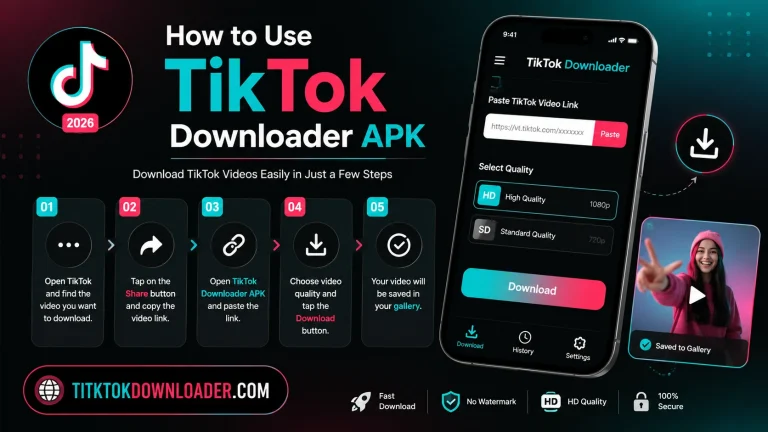
Method 2: Use a Web-Based TikTok Downloader in Safari
For videos that don’t have the native save option enabled, a browser-based downloader works well on iOS since it doesn’t require installing anything outside the App Store.
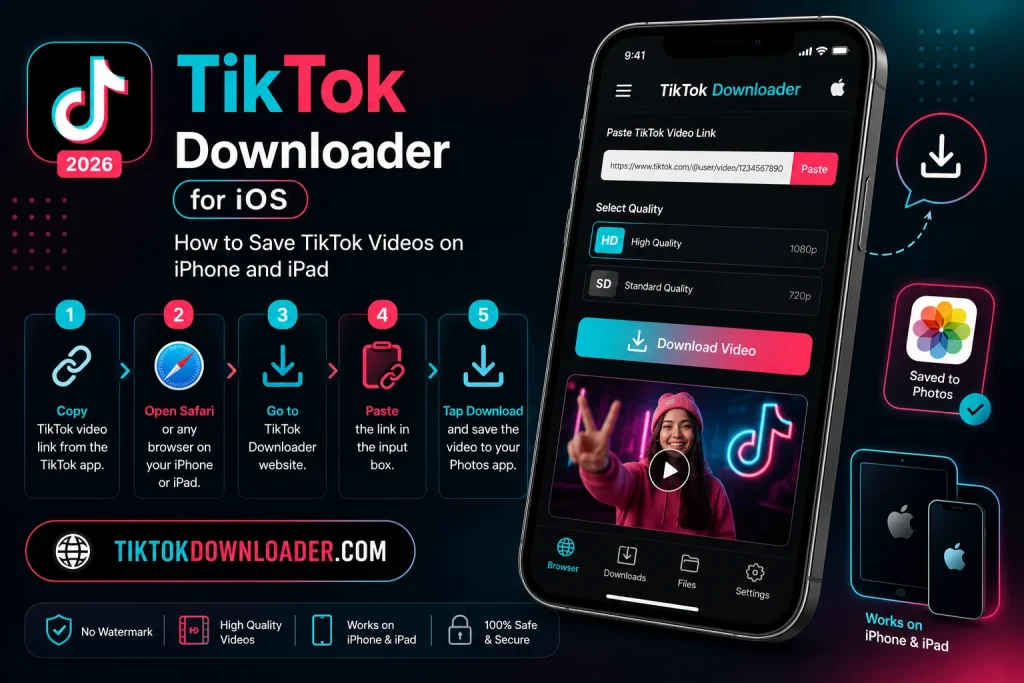
Step 1: Copy the Video Link
Open the TikTok video, tap Share, then tap Copy Link.
Step 2: Open Safari (or Your Preferred Browser)
Navigate to a TikTok downloader website directly from your iPhone or iPad.
Step 3: Paste the Link
Paste the copied link into the input field on the downloader site and select your preferred format (with or without watermark, video or audio).
Step 4: Download the Video
Tap the download button. iOS will typically prompt you to save the file, which you can then find in the Files app or, depending on the site, directly in your Photos app.
Method 3: Use the iOS Shortcuts App
For iPhone users who want a faster, repeatable process, the built-in Shortcuts app can streamline TikTok downloading without needing to visit a website each time.
Step 1: Set Up a Download Shortcut
Search the Shortcuts gallery for a TikTok-related shortcut, or create one that accepts a shared TikTok link and processes it automatically.
Step 2: Share Directly From TikTok
Open a TikTok video, tap Share, scroll to find your shortcut in the share sheet, and tap it.
Step 3: Let the Shortcut Run
The shortcut will process the link and save the video directly to your Photos app or Files app, depending on how it’s configured.
Method 4: Use a Third-Party App From the App Store
Several apps available on the official App Store are designed to help save video links, including TikTok content, for offline access. Since these apps go through Apple’s review process, they offer a safer alternative to sideloading, which isn’t possible on iOS anyway.
Step 1: Search the App Store
Look for a video-saving or downloader-style app compatible with iOS.
Step 2: Install and Open the App
Download the app like any other App Store app, then open it.
Step 3: Paste Your TikTok Link
Copy the TikTok video link and paste it into the app’s input field.
Step 4: Save to Your Device
Tap download, and the video will be saved to your Photos or Files app for offline access.
Comparing Your Options
| Method | Requires Extra App | Works for All Videos | Best For |
|---|---|---|---|
| TikTok’s Save Feature | No | Only if enabled by creator | Quick, built-in saving |
| Web-Based Downloader | No | Yes | Videos without save option |
| Shortcuts App | No (built-in) | Yes | Repeated, faster downloads |
| App Store App | Yes | Yes | A dedicated, app-based experience |
Tips for iOS Users
- Check Wi-Fi vs. cellular data. Downloading videos over Wi-Fi helps avoid using up your mobile data plan.
- Organize saved videos in Files or Albums. Creating dedicated folders or albums keeps your downloaded content easy to find later.
- Only use trusted downloader sites or App Store apps. Since iOS doesn’t support APK installation, stick to official App Store apps or reputable browser-based tools for safety.
- Respect content creators. Save videos for personal offline viewing, and credit original creators if you ever share saved content elsewhere.
Frequently Asked Questions
Can I install an APK file on my iPhone using a file manager or workaround? No. iOS does not support the APK format under any circumstances, even with third-party file managers.
Is there an official TikTok download feature on iOS? Yes, but it only works for videos where the creator has enabled downloads.
Do I need to log in to a downloader tool to save videos? Most web-based and App Store downloader tools only require the video link, not a TikTok login.
Will saved videos include a watermark? It depends on the tool. Many web-based downloaders offer both watermarked and watermark-free options.
Final Thoughts
While a “TikTok APK downloader” simply won’t work on an iPhone or iPad, iOS users have several straightforward alternatives from TikTok’s own built-in save button to browser-based tools, Shortcuts automation, and dedicated App Store apps. Whichever method you choose, you can still build an offline library of your favorite TikTok videos, safely and without needing an Android device.